MetaTrader

Can I log into MetaTrader from desktop and mobile at the same time?

Yes, you can be logged to multiple MetaTrader platforms (both desktop and mobile) at the same time with the same trading account.

Link to this answer

Can we add Custom Indicators and Expert Advisors to the Web MetaTrader platform?

Unfortunately, no. Custom modifications cannot be implemented to a Web MetaTrader.

Link to this answer

How can I add Custom Indicators to MetaTrader?

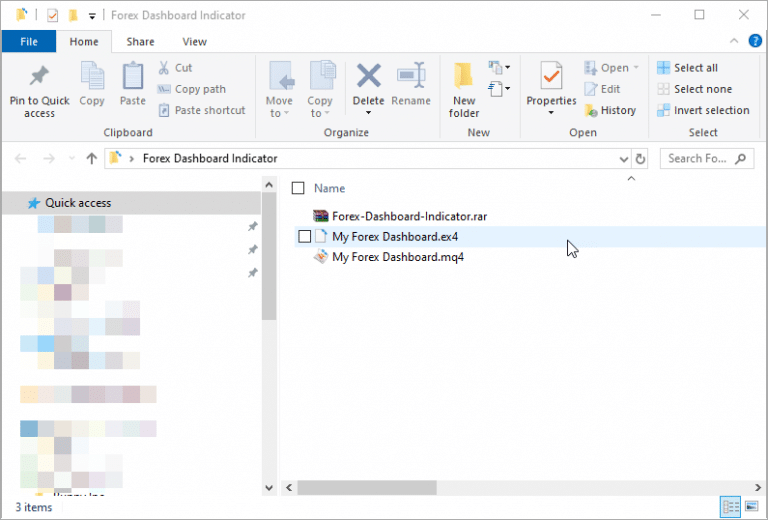
  1. Download and prepare the MT4 indicator file(s) so they are ready to go on your computer.

Please note that some custom indicators will come in a .rar file, so make sure to extract the .ex4 and .mq4 files:

Graphical user interface, application, Word

Description automatically generated
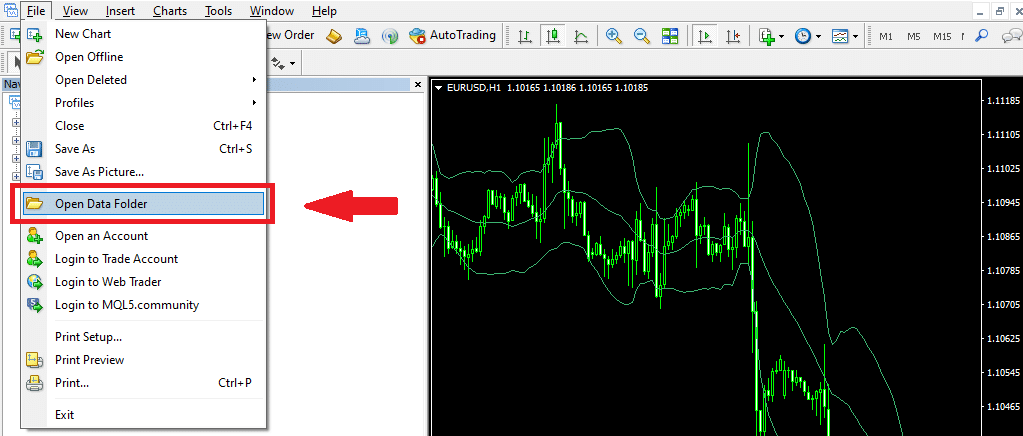
  1. Then, go back to your Metatrader 4 platform, click the File Tab and select “Open Data Folder” to get access to the system folders for the MT4 program:
Graphical user interface, chart

Description automatically generated


3. Again, go to the “MQL4” folder and the “Indicator” subfolder:

Graphical user interface, application

Description automatically generated


4. Just like generic indicators, you will need to open the “Indicators” subfolder:

Graphical user interface, application, table

Description automatically generated

5 After that, you can drag or copy and paste the custom indicators files to the “Indicators” subfolder:

Graphical user interface, application, email

Description automatically generated

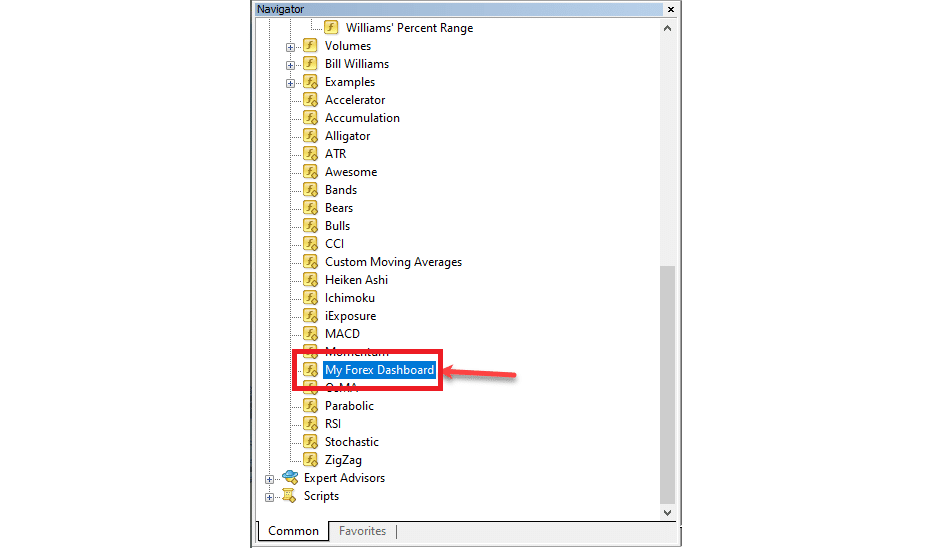
6 Close all the folder windows and restart the MT4 program. When MT4 loads again, you should see your custom indicator added to the directory in the navigation window:

Graphical user interface, application

Description automatically generated


Link to this answer

How can I add Expert Advisors to MetaTrader?

Step 1: Download and unzip your EA archive

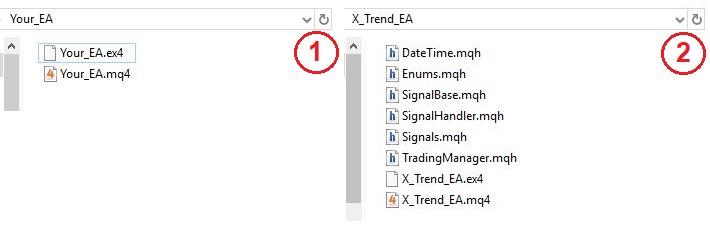
Open your EA folder. In this folder there will be all files that are required for your Expert Advisor to work.

Usually, simple EAs consist of two files with the following extensions:

  • . ex4 – compiled assembly (executable file). This file is used to launch your EA in MetaTrader terminal.
  • .mq4 – your EA source code, which can be viewed in MetaEditor. Used for making any adjustments/updates in your EA code.

EAs that are more sophisticated may contain additional files that are required for proper work of the EA.

Graphical user interface, text, application

Description automatically generated

Step 2: Copy your EA files into your MT4 terminal

All files required for the working process of your Expert Advisor in MetaTrader 4 should be in the Data Folder of your MT4 terminal.

To do this:

Launch your MetaTrader 4

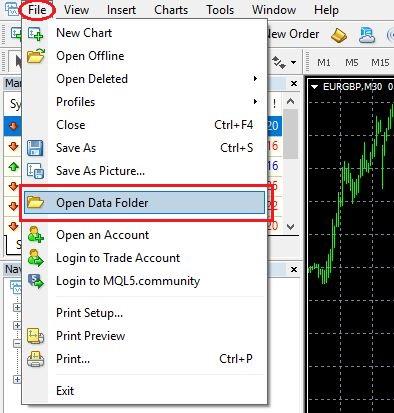
Click File in the upper navigation menu -> select Open Data Folder

Graphical user interface, application

Description automatically generated

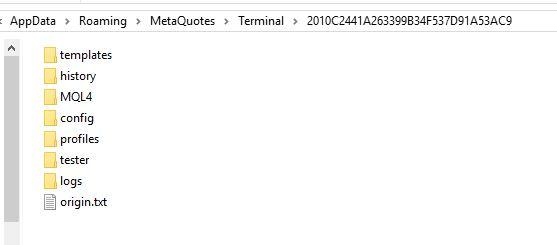
The Data Folder with your MT4 terminal will be opened. 

Graphical user interface, text

Description automatically generated with medium confidence

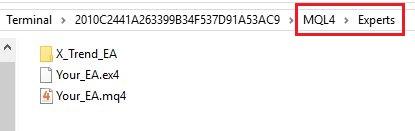
In the just opened Data Folder, open MQL4 -> Experts. This is the folder in which you need to copy your EA files. If your EA consists of two files (. ex4 and .mq4), just copy and paste them into the Experts folder. If your EA consists of several files, copy, and paste the unzipped folder from Step 1 into the Experts folder.

Graphical user interface, text, application

Description automatically generated with medium confidence

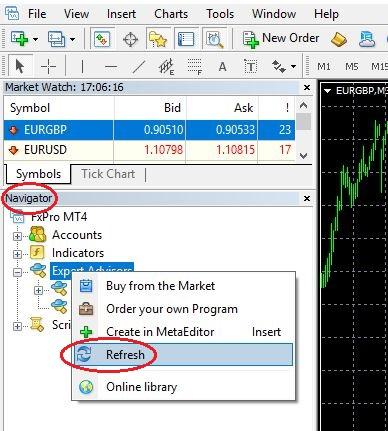
Please note that if your EA is based on some custom indicators, they should be located in a separate folder MQL4 -> Indicators. Files with .dll extension should be in MQL4 -> Libraries folder. After your copy all the files into related folders, restart your MT4 terminal or open “Navigator” in your MetaTrader 4, right-click on “Expert Advisors” point of menu and click “Refresh”.

Graphical user interface, application

Description automatically generated

Now your EA is successfully installed in your MT4 terminal and is available in “Navigator” window under “Expert Advisors” menu.

Step 3: Check your EA settings before the start

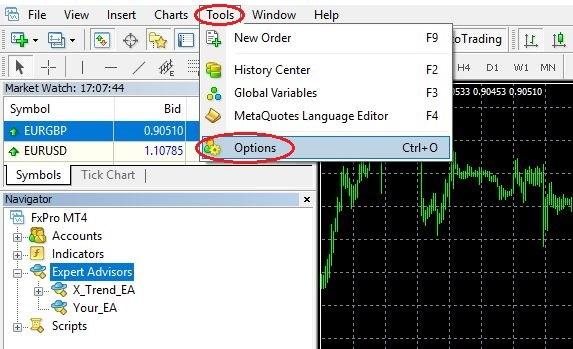
In the upper navigation menu click “Tools” -> select Options

Graphical user interface, application

Description automatically generated

In the opened window open “Expert Advisors” tab and check if:

“Allow automated trading” is enabled

“Allow DLL imports” is enabled in case your EA uses .dll files

If your EA is designed for some specific financial asset or timeframe, for security reasons set “Disable automated trading when the charts symbol or period has been changed”

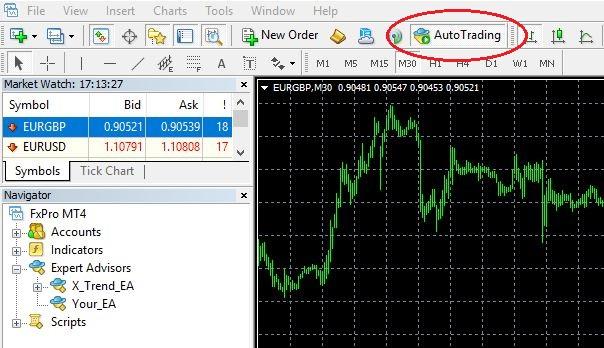
Check if “AutoTrading” is enabled on the MT4 terminal control panel. For your EA to be able to execute trades automatically, this button should be clicked. When turned on the button has a green indication.

Graphical user interface

Description automatically generated

Now your EA is ready for a start.

Step 4: Start your Expert Advisor

Before starting your EA ensure that you have opened the chart with the financial asset and timeframe that you want to use your EA on.

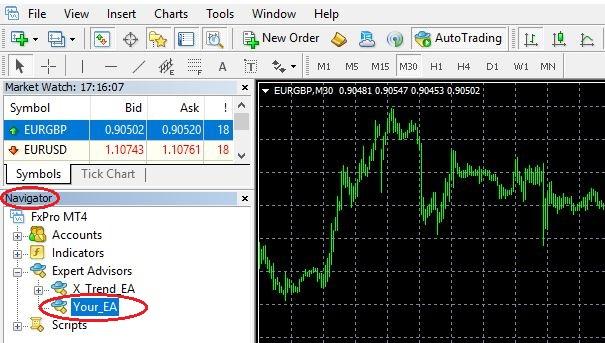
In “Navigator” window unroll “Expert Advisors” menu and select the EA that you want to start.

Graphical user interface, application

Description automatically generated

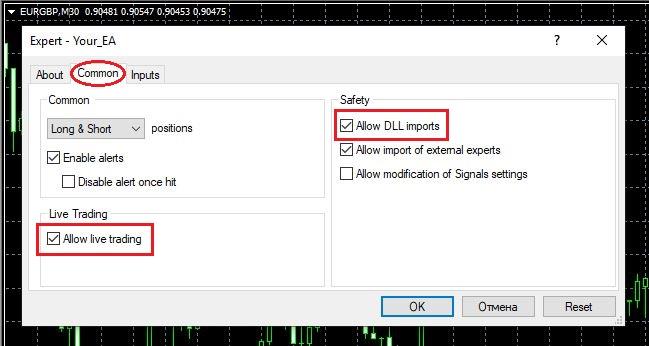
Double-click on the EA or drag-and-drop it on the chart. Once you do this settings window of the Expert Advisor will open.

On the “Common” tab ensure that your EA is allowed to trade automatically and check other parameters as well, such as if alerts are allowed (in case your EA uses them) as well as .dll imports (in case your EA uses external .dll files).

Graphical user interface, text, application

Description automatically generated

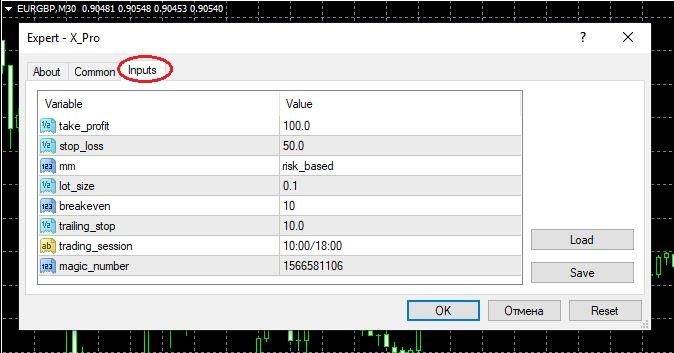
On the “Input” tab ensure that all the EA parameters are configured in accordance with your trading strategy.

After checking all the settings click “OK”. Your Expert Advisor has started to work.

Graphical user interface, application

Description automatically generated

Step 5: Ensure that your EA is running

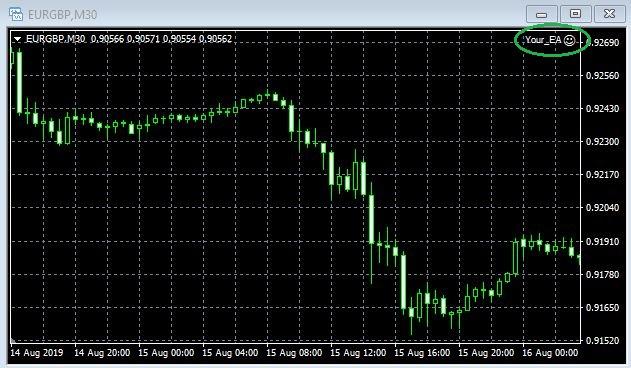
If the installation and launching processes have been successful, you will see a smiley face at the top right corner of the chart near your Expert Advisor name.

Graphical user interface, chart

Description automatically generated

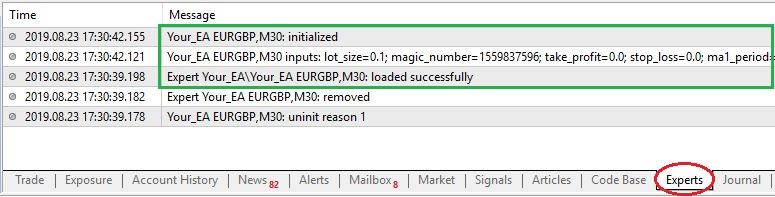
Check “Experts” and “Journal” tabs at the bottom of your terminal: if there are no any error alerts in there, then this means that your Expert Advisor is launched successfully and is currently running.
Graphical user interface, text, application, email

Description automatically generated

Link to this answer

How can I add Indicators to MetaTrader (desktop and mobile)?

There are two types of MetaTrader indicators: 

  • Built-in MT4 indicators: this group includes pre-installed indicators like moving averages, MACD, ATR, RSI, among others.
  • Custom MT4 Indicators: are programs developed independently in MQL4 and they aren’t part of the standard MT4 installation package.

Desktop MetaTrader

For built-in MT4 indicators, in the process of installing MT4 you should see that the indicators files will be downloaded and installed as well automatically.

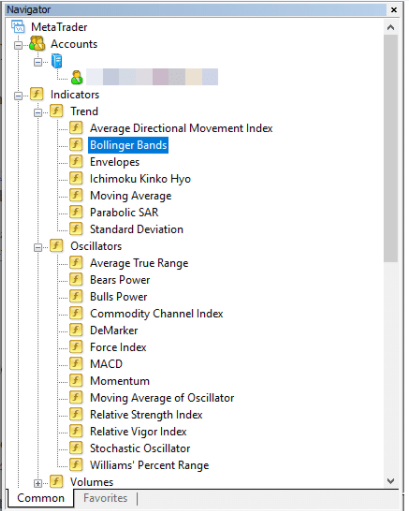
After you complete the MT4 installation, make sure to check the indicators directory in the navigator window of your MT4 terminal

Graphical user interface

Description automatically generated with medium confidence

In addition, if you need to modify or you want to remove one of the built-in indicators, you can always follow these steps to access the files in your computer:

  • Go to your File tab and move down the menu to the “Open Data Folder” selection, this will trigger a new screen.
  • Then, you can navigate to the folder that says “MQL4”. In that folder, you will find the next subfolder named “Indicators”.
  • After that, you will see the list of all the MT4 indicators files that were pre-installed on your computer. Also, you will notice that all of them come with a couple of files in .ex4 and .mq4, which are the valid formats of MT4 indicators.
  • If you perform any changes, you will need to restart your MT4 platform as well.
  • Check the indicators directory in the navigation window to verify the changes.

Mobile MetaTrader 

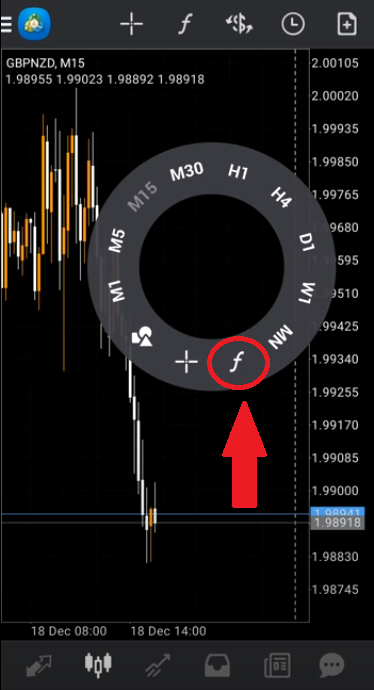
To add the built-in indicators to a Mobile MetaTrader application press, or tap, anywhere on the chart screen. 

After that, a new round menu will pop up on which you may select a “Functions” option. 

A picture containing graphical user interface

Description automatically generated

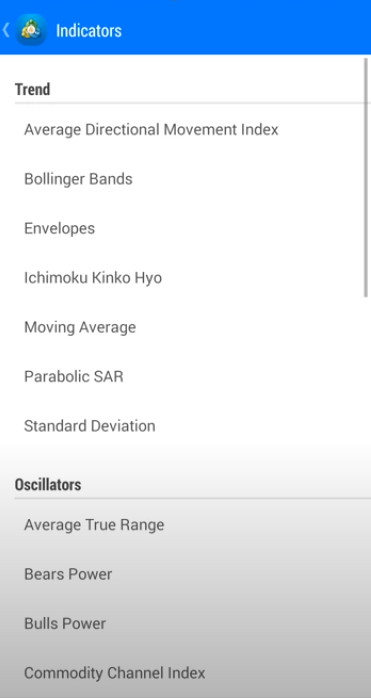
After selecting the “Functions” option a list of all the available predefined and built-in indicators will pop up for you to select the one you need. 

Graphical user interface, application

Description automatically generated

Link to this answer

How can I add more pairs in MetaTrader? (desktop and mobile)

Desktop MetaTrader 4/5:

To display all of the available trading pairs in your MetaTrader please right click on any trading pair in your Market Watch window and the select “Show All” option on the newly opened menu.

Mobile MetaTrader 4/5:

  1. Navigate to the ‘Quotes’ tab and press the ‘+’ button on your phone at the top right-hand corner
  2. This will open a sub-menu
  3. Navigate through these groups until you find the pair you require and tap to add to your Quote List

Link to this answer

How can I add or remove saved accounts from the platform?

Adding trading accounts to the Desktop MetaTrader 4/5:

Start up the MT4 application firstly, then Go to 'File' in the top menu

1) Select the 'Login to Trade account' option

2) Enter your MT4 account’s number and MT4 password in a newly opened login window

3) Select “Midas FX-Live” server. or Midas FX-Demo Server, depending on whether it is a Live or a Demo account

Removing trading accounts from the Desktop MetaTrader 4/5:

In the Navigator Window, under accounts, right click the account/s that you want to delete and select “Delete” option.

——————————-

Adding trading accounts to the Mobile MetaTrader 4/5:

    1) Open your Mobile MetaTrader application and click on the ” + ” icon to add an account

    2) Click on the Login to an existing account and type: Midas
After that please select either Midas FX -Live or Midas FX -Demo, depending on whether you’re using a Live or a Demo trading account

    3) After that it will ask you for your Login and Password. In Login type your account number, and in password type your trading account password.

Removing trading accounts from the Mobile MetaTrader 4/5: To remove an account from the list, swipe its line from right to left. Then tap “Delete”.

Link to this answer

How can I add the Midas FX servers to MetaTrader? (desktop and mobile)

To manually add the broker’s server to the MetaTrader application please follow the steps below:


Desktop MetaTrader 4/5:

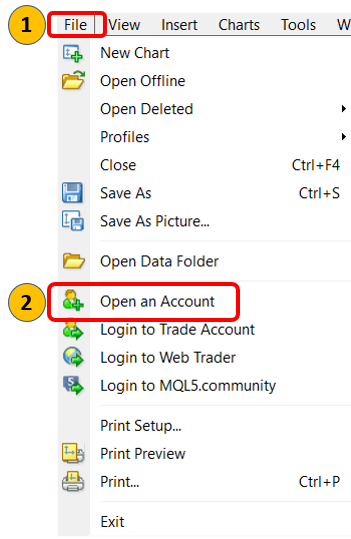
  1. On your MT4, click File.
  2. Select Open an Account.

Graphical user interface, text, application, chat or text message

Description automatically generated

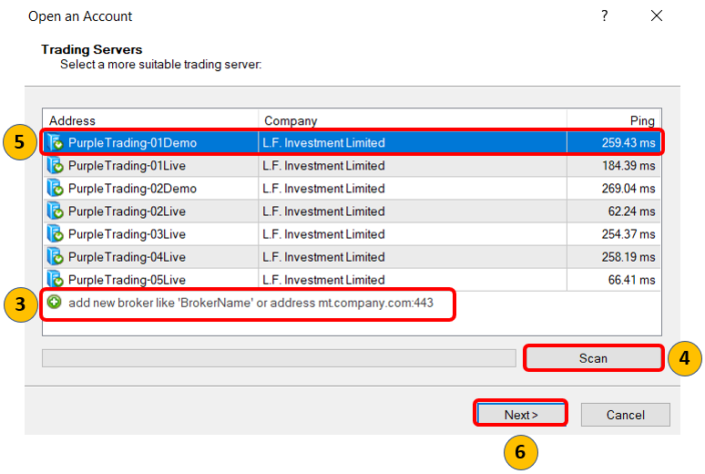
  1. Click Add new broker and then please type in the name of your broker or brokers server.
  2. Select Scan.
  3. Select your server on the list.
  4. Click Next. 

Graphical user interface, application

Description automatically generated

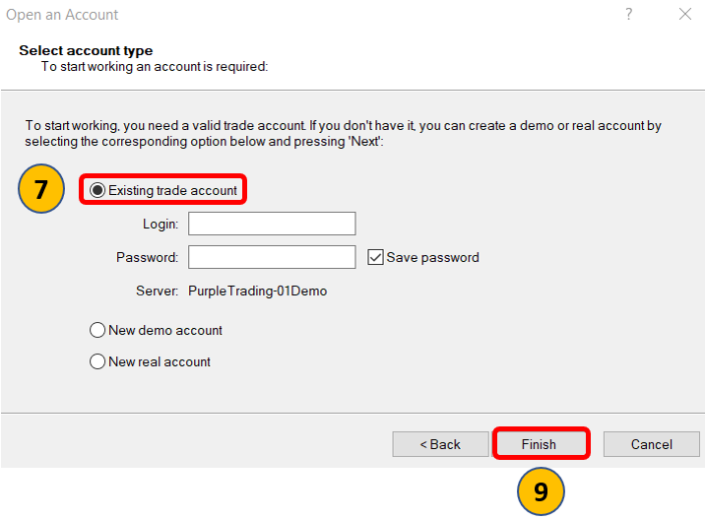
  1. Select Existing trade account.
  1. Enter your login credentials received by the Midas FX broker
  1. Click Finish
Graphical user interface, text, application

Description automatically generated

Mobile MetaTrader 4/5:

    1) Open your Mobile MetaTrader application and click on the ” + ” icon to add an account

    2) Click on the Login to an existing account and type: Midas
After that please select either Midas FX Live or Midas FX Demo, depending on whether you’re using a Live or a Demo trading account    

3) After that it will ask you for your Login and Password. In Login type your account number, and in password type your trading account password.

Link to this answer

How can I create a chart template in MetaTrader?

Here is how to do it:

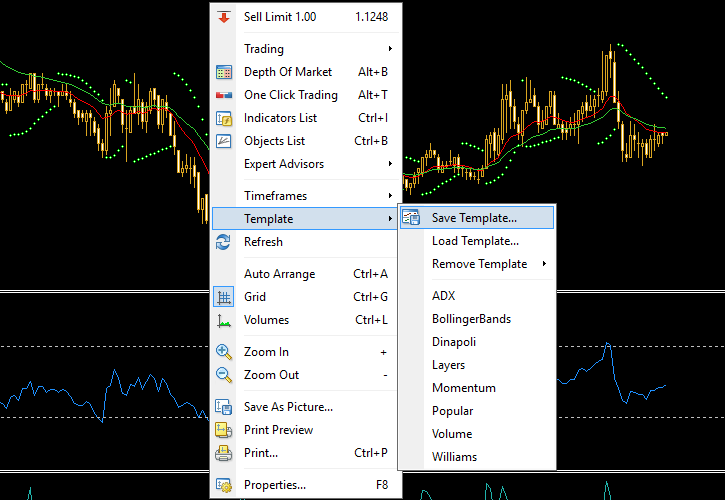
  1. Save the template of your customized chart. Do this by right-clicking anywhere on the chart and selecting Template->Save Template.
Save template from your chart
  1. Name the template file accordingly and click Save:
Choose template name and click save

Now, if you want to copy the template for usage in another platform, just follow to the next step. If you only want to load the template in another chart inside the same platform, you can proceed directly to step 8.

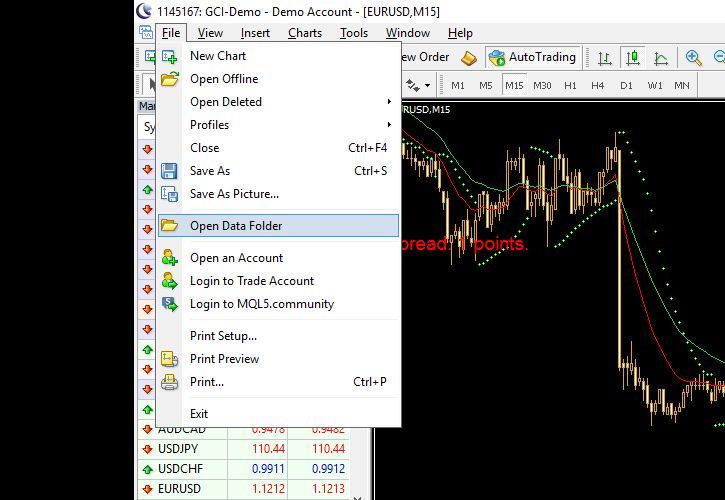
  1. Open the platform’s data folder by using the menu File->Open Data Folder:
Open data folder

Alternatively, you can navigate to the folder using Windows Explorer:

C:Users<Windows_User_Name>AppDataRoamingMetaQuotesTerminal<Instance_ID>

  1. If you are using MetaTrader 4, open templates folder:
Templates folder in MT4

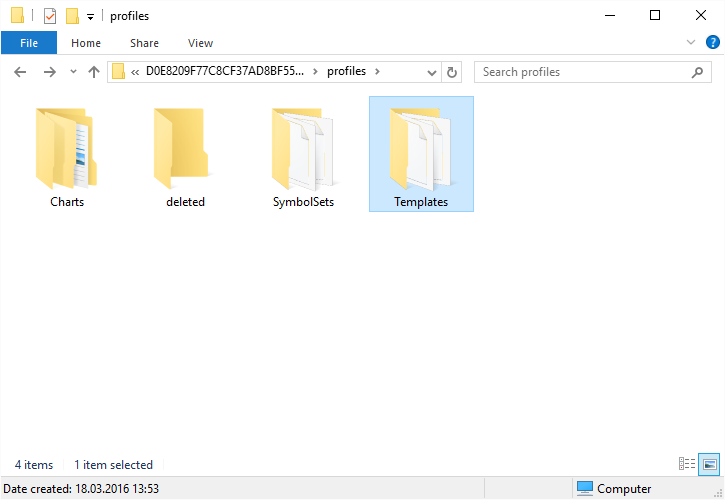
If you are using MetaTrader 5, first, open /MQL5/Profiles/ folder:

Opening profiles folder in MT5

And then open Templates folder:

Templates folder in MT5

This is the only difference in handling templates between MT4 and MT5.

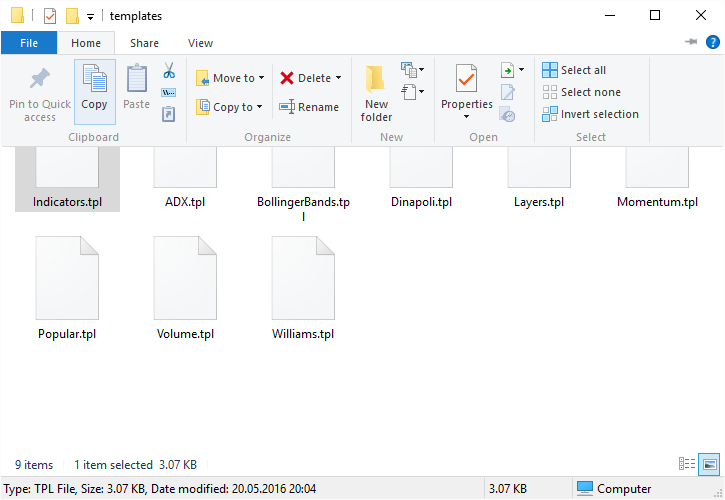
  1. Copy your template file (it has. tpl extension):
Copy template file
  1. Go to your target platform and open its data folder using menu File->Open Data Folder:
Open data folder in another platform

Alternatively, you can navigate to the folder using Windows Explorer:

C:Users<Windows_User_Name>AppDataRoamingMetaQuotesTerminal<Instance_ID>

  1. Open its templates folder (see step 4) and paste the template file here:
Paste template file

It is now ready for use in this another platform.

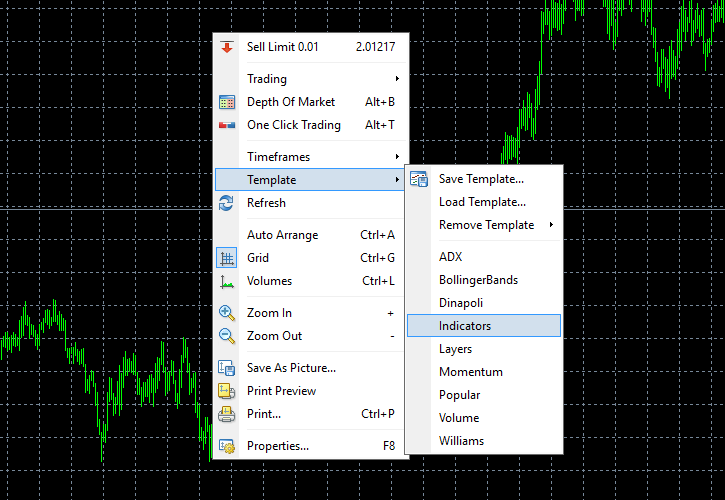
  1. Right-click on the chart where you want to load your custom template and select the template’s name:
Load template

Alternatively, you can choose to load template from a file — it is a useful feature when you do not want to copy the template file to the platform’s data folder:

Load template from file

By doing all of this, your new chart will now look exactly like the old one:

Chart with loaded template in another platform

Please note: 

  • The same can be done when you want to quickly load a complete set of chart parameters, indicators, and expert advisors on several charts inside one platform. Just save the template once and load it on other charts within the same MetaTrader.
  • Templates transfer everything (even EAs) except timeframe and currency pair. However, you need to have the same custom indicators and expert advisors files in the target platform, otherwise they won’t load.
  • This guide is valid for both MT4 and MT5, but although you can try loading an MT4 template onto an MT5 chart or vice versa, the results might not be very good. Some chart settings will carry over, but indicators and EAs won’t.

Link to this answer

How can I create a Live Account?

  1. Login to your Client Office
  2. Once logged in please click on the “Open live account button

Link to this answer

How can I create a Pending order in MetaTrader? (desktop and mobile)

Desktop MetaTrader:

To do so please right click on any trading pair in the Market Watch window. You can then choose the option “New order” and execution type as Pending Order. 

After that you will be able to set volume, stop loss, and take profit, choose the order type (Buy Stop / Buy Limit / Sell Stop / Sell Limit) , pending order opening price and pending order expiry date. 

Graphical user interface

Description automatically generated

Mobile MetaTrader

To set pending orders on the MT4 android platform, go to the “Quotes” tab and then pick the instrument. 

You can then choose the option “New order” and type of execution. Next, choose one from four pending trade solutions: buy stop, sell stop, buy limit, or sell limit. After that, set volume, stop loss, and target.

Link to this answer

How can I display the Ask price in MetaTrader? (desktop and mobile)

To see the ASK line in MT4:

  • (desktop) Right click the chart and click Properties >> Common >> Show ASK line
  • (mobile) Go to Settings >> Charts >> Ask price line

Link to this answer

How can I fix the “Invalid Account” error in MetaTrader?

The “Invalid Account” message on a trading application indicates to one of two possible things done wrong in the logging process:

  1. Incorrect, or incorrectly typed in, account number
  2. Incorrect, or incorrectly typed in, MT4/5 application password (not the Client Office password)

Solution  

If you have correctly typed in your account number and properly selected a trading server, please try by setting a custom MT4 application password first, and then re-doing the logging process by using the newly set password.
  — MT4 custom password can be set in within of your Client Office in less than a minute, here’s how:

Live Accounts
Procedure on how to set a new MT4 application’s password for a Live trading MT4 account:

  1. Login to your Client Office
  2. Then go to Live Accounts section in Private Office
  3. Initiate password reset procedure as per attached screenshot.
  4. Check your email inbox (or alternatively junk/spam folder) for password reset email.
  5. Follow the link inside received email and set new password for your trading account.

Demo Accounts
Procedure on how to set a new MT4 application password for a Demo trading MT4 account:

  1. Login to your Client Office
  2. Then go to Demo Accounts section in Private Office 
  3. Reset password as per attached screenshot.
  4. Check your email inbox (or alternatively junk/spam folder) for password reset email.
  5. Follow the link inside received email and set new password for your trading account

The “Invalid Account” message on a trading application indicates to one of two possible things done wrong in the logging process:

  1. Incorrect, or incorrectly typed in, account number
  2. Incorrect, or incorrectly typed in, MT4/5 application password (not the Client Office password)

Solution  

If you have correctly typed in your account number and properly selected a trading server, please try by setting a custom MT4 application password first, and then re-doing the logging process by using the newly set password.
  — MT4 custom password can be set in within of your Client Office in less than a minute, here’s how:

Live Accounts
Procedure on how to set a new MT4 application’s password for a Live trading MT4 account:

  1. Login to your Client Office
  2. Then go to Live Accounts section in Private Office
  3. Initiate password reset procedure as per attached screenshot.
  4. Check your email inbox (or alternatively junk/spam folder) for password reset email.
  5. Follow the link inside received email and set new password for your trading account.

Demo Accounts
Procedure on how to set a new MT4 application password for a Demo trading MT4 account:

  1. Login to your Client Office
  2. Then go to Demo Accounts section in Private Office 
  3. Reset password as per attached screenshot.
  4. Check your email inbox (or alternatively junk/spam folder) for password reset email.
  5. Follow the link inside received email and set new password for your trading account

Link to this answer

How can I fix the “No Connection” error in MetaTrader?

There are three possible ways to fix the “No Connection” error on the MetaTrader application: 

  1. Logging to the MetaTrader through the broker’s server IP address
  2. Installing a broker’s version of the MetaTrader as it has the broker’s trading server’s predefined in it
  3. Adding the broker’s server to the existing MetaTrader
        “Please refer to Q12 / A12 in order not to repeat the process needlessly”

Solution 1) 

  • For Live MetaTrader4 accounts (MidasFX-Live server)
  1. Open your MetaTrader4 and select “File”
  2. After that select “Login to Trade Account”
  3. On a newly opened form please type in:
  • Trading account number
  • Your MT4 Password 
  • Manually input this IP address: 79.142.64.201:443 into the server field
MetaTrader
  1. Check the box for “Save account information”
  2. Lastly, click on the “Login” button
     

————————

  • For Demo MetaTrader4 accounts (MidasFX-Demo server)
  1. Open your MetaTrader4 and select “File”
  2. After that select “Login to Trade Account”
  3. On a newly opened form please type in:
  • Trading Demo account number
  • Your MT4 Password 
  • Manually input this IP address: 79.142.64.201:543 into the server field
MetaTrader
  1. Check the box for “Save account information”
  2. Lastly, click on the “Login” button 

Solution 2) 

In order not to type in the server’s IP each time, you can also install a new version of the MT4 from the broker’s website. 

By doing so you will have an MT4 that will come with already predefined trading servers for the broker you are using. 

To do so please follow the steps below: 

  1. Open the MidasFX website. 
  2. Navigate to the Trading Platform / MetaTrader 4 or MetaTrader 5 section 
  3. Click on the Download button 

Link to this answer

How can I reset my MetaTrader password?

Please find the step-by-step instructions below: 

Live Accounts
Procedure on how to set a new MT4 application’s password for a Live trading MT4 account:

  1. Login to your Client Office
  2. Then go to Live Accounts section in Private Office
  3. Initiate password reset procedure as per attached screenshot.
  4. Check your email inbox (or alternatively junk/spam folder) for password reset email.
  5. Follow the link inside received email and set new password for your trading account.

Demo Accounts
Procedure on how to set a new MT4 application password for a Demo trading MT4 account:

  1. Login to your Client Office
  2. Then go to Demo Accounts section in Private Office 
  3. Reset password as per attached screenshot.
  4. Check your email inbox (or alternatively junk/spam folder) for password reset email.
  5. Follow the link inside received email and set new password for your trading account.

Link to this answer

How can I save my settings/profile in MetaTrader?

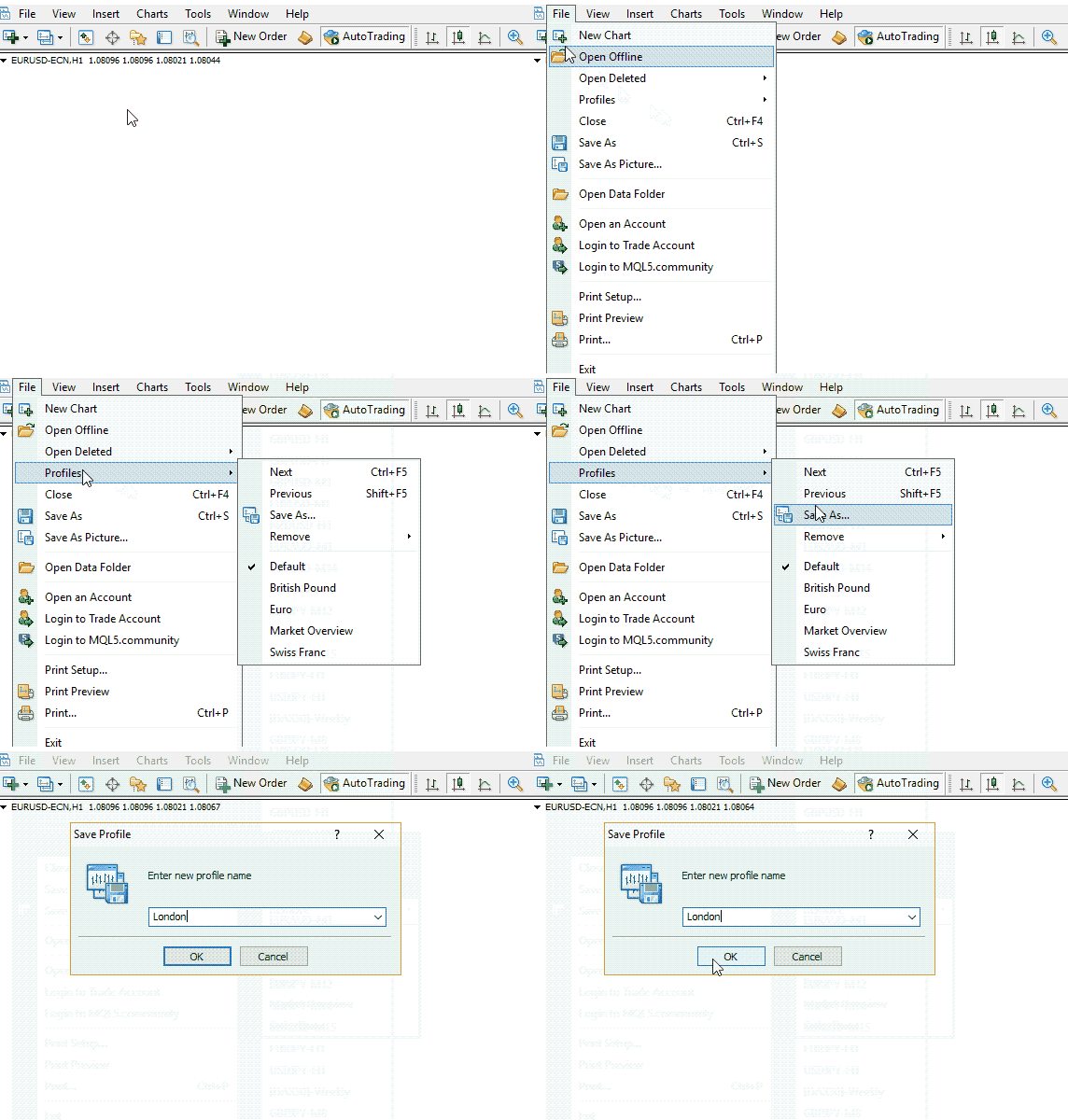
Profile settings allow you to control and group the number of charts and currency pairs that are open at one time. You can use these settings to save and load only those pre-selected currency pairs.

Example:

You only wish to see charts related to EUR, GBP, and USD, while in the evening or the night you prefer to only see AUD, NZD, and JPY-related crosses. Using Profile settings, you can save a lot of time.
First, you save a profile named “London” with charts such as EUR/USD, EUR/GBP, GBP/USD, and USDCHF. Then you can save a “Tokyo” profile that would only bring up pairs such as USD/JPY, AUD/JPY, GBP/JPY, and NZD/USD.

Graphical user interface, application

Description automatically generated

Link to this answer

How can I view the Depth of Market in MT4?

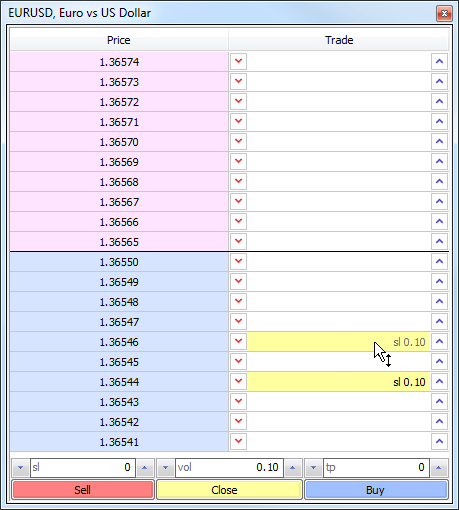
To do this, please enable “One-click trading” in the client terminal’s settings. Trade requests are sent from Depth of Market instantly without showing a trading dialog.

Once that is done, move to the Market Watch window and then please right click on the selected trading pair. 

On a newly opened menu please select “Depth of the Market” option. 

Example: 

Table

Description automatically generated

Link to this answer

How do I display spreads in MetaTrader?

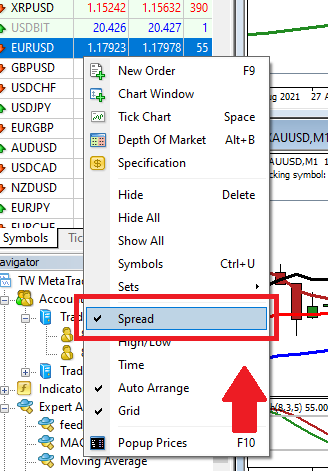
To do so please right click on any of the trading pairs in the Market Watch window. After that, on a newly opened menu, please select and tick the “Spread” option. 

Diagram

Description automatically generated

Link to this answer

How do I enable One-Click Trading?

To do so please follow the steps below:

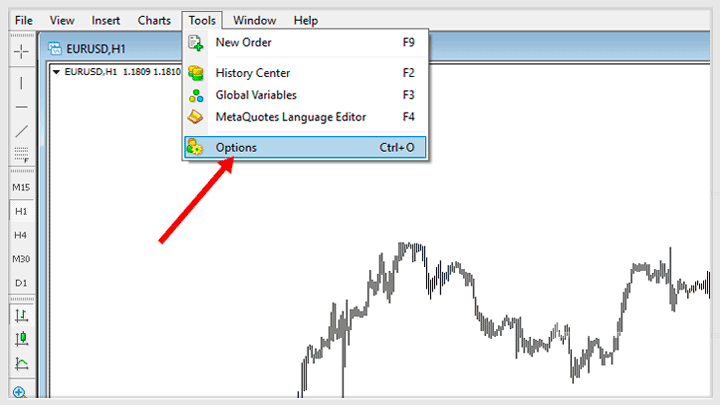
  1. To activate One Click Trading go to the “Tools” main menu and select “Options”.
  2. Go to the “Trade” tab in the “Options” window and make sure that “One Click Trading” is ticked.
  3. You can deactivate the mode at any time through the same procedure.

Link to this answer

How do I install MetaTrader on a Mac device?

Download here

MidasFX MetaTrader 4 for Mac

MidasFX MetaTrader 5 for Mac

Once the download is complete, simply decompress the file and drop on your desktop. The first time you run the program, you may need to hold the Control key while double clicking the file and agree to allow the file to run. You will only have to do this once.

Note that since all versions of MetaTrader are not natively designed for Mac, some functions may be unstable or not work entirely. We have found the following features do not always work properly

  • Push notifications cannot be sent from the client terminal
  • Signals and Market Tabs are empty
  • News is not always displayed correctly


Our Mac apps are for convenience purposes only and MidasFX makes no warranty of their functionality nor reliability. Any and all use of the Mac apps are at the sole risk of the user. Always have another device from which to manage your trades in the event the app stops working.

Link to this answer

How do I install multiple MetaTrader platforms on my PC?

Please follow the steps below:

  1. Execute your MT4 installer. Before tapping Next, tap Settings first

  2. In the folder field of installation, you’ll have to add the characters” (1)” at the last of the path/directory. The default path needs to be “C:\Program Files (x86)\MetaTrader 4 Terminal.” After adding” (1) at its last, the installation folder will become “C:\Program Files (x86)\MetaTrader 4 Terminal (1).”

  3. Tap Next and complete the installation.

  4. By doing this you have created the first MT4 instance of the terminal. In case it opens up automatically, please close it if you wish to install more. Look for a similar MT4 installer & execute it once again.
    You will repeat Step 1, and Step 2, after tapping the settings, you’ll have to add some additional characters at the last part of the Installation folder’s path. For the second instance, just type “(2)” at the path’s last part and proceed—Tap Next & Finish the installation.

  5. After successfully installing your MT4 terminal’s second instance, just repeat the process until you reach your desired number of MT4 instances installed on your PC. Don’t forget to increment the number every time in the last part of the Installation folder’s path on every single integration of the installation.

  6. Go to C:\Program Files (x86) (or you can also open the folder in which you installed all the MT4 instances) and locate the folders of the distinctive MT4 instances that you just installed.

  7. Go into the folder of the first instance (1), and the file named “terminal.exe” will appear there (There are normally two of them). Please select the EXECUTABLE file rather than choosing the icon file.

  8. After that, right-click it and choose to Send to > Desktop (create shortcut). After completing this, it will create a file’s shortcut to your pc that makes it convenient to launch your first MT4 instance.

  9. After successfully creating the shortcut of your first instance in your pc, repeat a similar process for the other instances by doing similar things in their respective folders.

  10. 10) Just go back to C:\Program Files (x86), go into the folder of your second or third and create a shortcut to your pc as described above.Each one will launch its respective MT4 instance.

Execute every single instance & log in to your account of MT4.

Link to this answer

How do I partially close trades? (desktop and mobile)

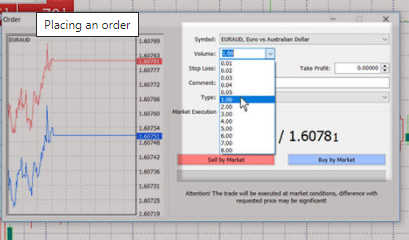
To do so you need to reduce the trading volume to the amount you want in the “Order” window.

Graphical user interface, application, table

Description automatically generated

Examples: 

Open a 1 full lot of the EUR/AUD pair by setting the volume from the Order window or the One Click Trading panel.

Graphical user interface, application, table, Excel

Description automatically generated

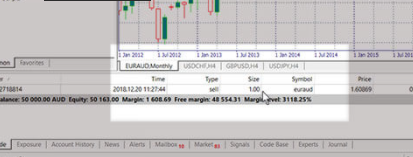
Once the trade is open you can see the lot size in the Terminal window.

Graphical user interface

Description automatically generated with low confidence

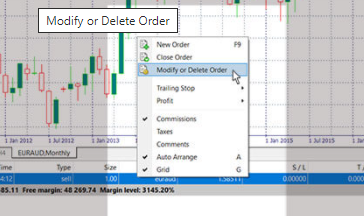
To close only a subset of the order, right-click on it and select “Modify or Delete Order” from the menu.

Graphical user interface, application, Excel

Description automatically generated

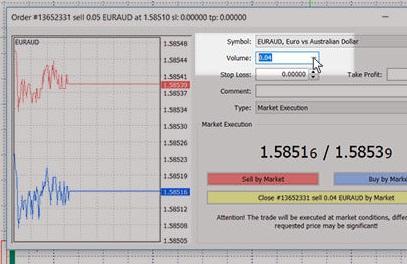
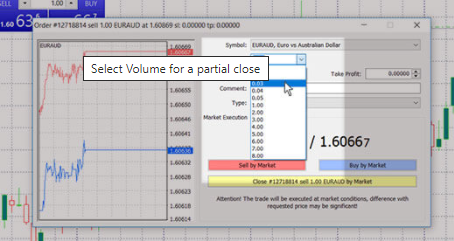
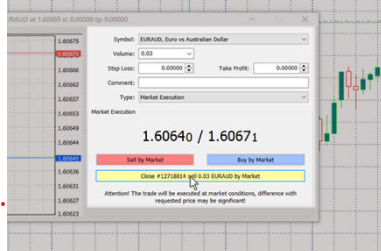
The Order window will open. Select “Market Execution” from the Type section in order to change the lot size. Choose any part of the trade by selecting, for example, 0.03 from the Volume section. 

The number you select shows the amount that will be closed, not the one that remains.

Graphical user interface, application, table, Excel

Description automatically generated

The size of the trade you want to close is selected, so you can click the Close button to execute.

Graphical user interface, application

Description automatically generated

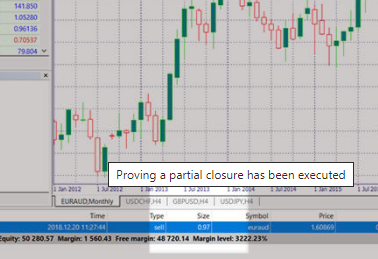
The remaining volume of the trade is now visible in the Trade tab of the Terminal.

  • It is 0.97 in this example
Graphical user interface

Description automatically generated

Link to this answer

How do I set the investor (read-only) password?

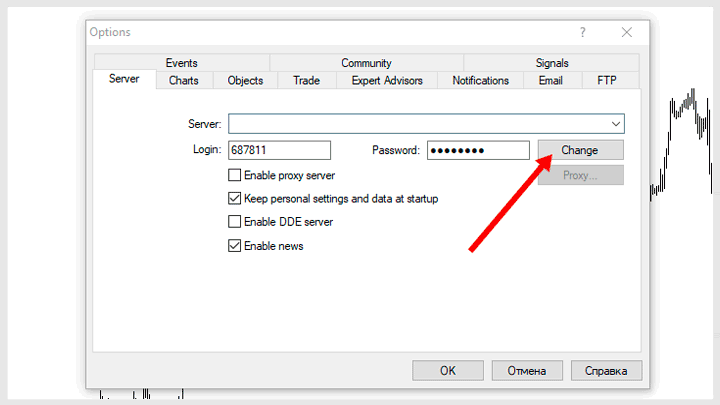
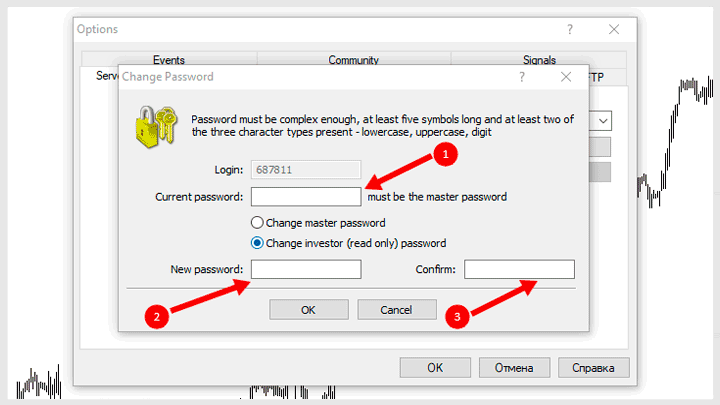
You may set Investor Password in your MT4 >> Tools >> Options >> Server >> Change password

First input Current master password, then select Change investor (read only) password and input and confirm the desired password. 

  • Please use a combination of numbers and letters for the password.

Below you may also find a step-by-step guides in screenshots: 

Graphical user interface, application

Description automatically generated
MetaTrader
Graphical user interface, text, application

Description automatically generated

Link to this answer

How do I set up email alerts in MetaTrader?

Example by using Gmail as the recipient’s email:

To get started have your Gmail email and password ready then do as follows in MT4:

  1. Click the “Tools” drop-down from the main menu and then click “Options”
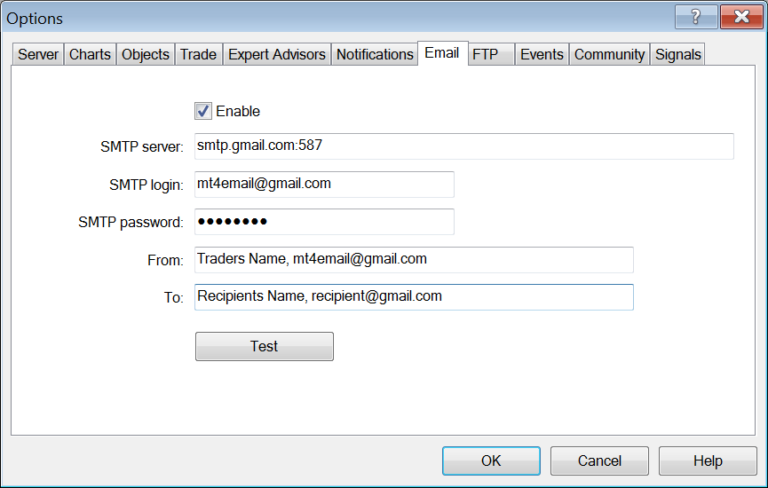
  2. Select the “Email” tab and enter the following settings:

Check “Enable”

SMTP Server: smtp.gmail.com

SMTP login: <your email address>

SMTP Password: <your email password>

From: MT4 Alerts, (entering your email address to send from)

To: Recipient Name, (entering the email address to receive email)

Example:

Graphical user interface, text, application, email

Description automatically generated
  • Click OK button and now MT4 is able to send you email when either Alerts are configured to send email or when an Expert Advisor attempts to send email.

Now that you have the email settings set up you will quickly go over how to use the basic Alerts functionality.

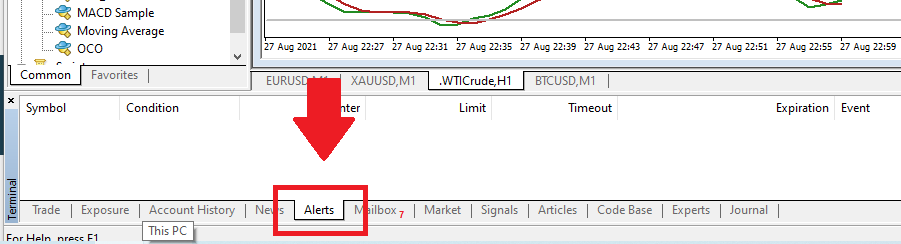
In the MT4 Terminal window there is a tab labelled “Alerts”, which if clicked will bring a list of all set Alerts. We can enter new Alerts by right clicking in this window and selecting the “Create” option. The Alert Editor dialog box will appear that will allow you to set email and other alert types to trigger when the market price of certain symbols breaches a defined price.

Link to this answer

How do I set up push notifications?

Please follow the steps below on how to set those up: 

Step 1) 

The ‘trading alerts’ option is designed to notify of certain events in the Forex market. Having created alerts, you can move away from your screen – the terminal will automatically notify that the given event has occurred. To be able to use this function, you need to run the trading terminal and open ‘Data Window’, which opens upon pressing the ‘Terminal’ button on the Tools panel in the trading terminal.

Graphical user interface, application, Word

Description automatically generated

Step 2)

Next, to set an actual alert, you need to mouse over and right-click on the blank white field of the tab and then select the ‘Create’ menu item.

Graphical user interface, application

Description automatically generated

Step 3) 

In the window that has appeared, you can select an action you want to perform and customize the settings of the future alert.

Graphical user interface, text, application, email

Description automatically generated


The following settings are available: 

  • Action – an action performed when an event occurs:
  • Sound – play a sound file;
  • File – run an executable file;
  • Mail – send a message by internal email;


Explanations about each: 

Notification – send a push notification to a mobile device. Sending push notifications requires the MetaQuotes ID to be specified in the terminal settings. MetaQuotes ID is a unique identifier, which is assigned to each mobile terminal during its installation on a device. Push notifications are an effective means to notify of events, they are delivered instantly to your mobile device and don’t get lost. The message text is to be entered in the ‘Source’ field.

Symbol – a financial instrument, the data on which are used to check the condition specified. If the “Time=” parameter (alert triggering at the pre-defined time) is selected as the condition, the symbol does not matter.

Condition – a condition under which the alert will trigger. The following can serve as a condition:

Bid> – the Bid price is higher than the specified value. If the current Bid price exceeds the given value, the alert will trigger;

BidAsk> – Ask> – the Ask price is higher than the specified value. If the current Ask price exceeds the given value, the alert will trigger;

AskTime= – time is equal to the given value. As soon as this time comes, the alert will trigger.

Value – a verifying value of the condition. If the price of the instrument reaches the value, the alert will trigger.

Source – depending on the type of action performed when a particular event occurs, one of the following is specified here:

  • -a sound file in the *.wav, *.mp3 or *.wma format.
  • -an executable file in the *.exe, *.vbs or *.bat format.
  • -an email templates. 

If you select ‘Email’, a click on this field will open a window for making a template of an email to be sent to the address specified in the terminal settings. You can also just type an email text message in this field in the “email subject\ email text” format.

  • -a text of a push message. The maximum message length is 255 characters.

Timeout – a time period within which an alert is triggered.
Maximum iterations – a maximum number of times the alert repeats triggering.

Link to this answer

How to download the historical data to view on a chart?

To do so please go to the Tools > Charts and type 9999999999999 into Max bars in chart and into Max bars in history. Then open a M1 chart on the pair you wish to back test.

After that click File > Open Data Folder > History > Midas FX-Live and then close the Midas terminal, delete the chart files in this folder.

And by doing so you will download all available history on our server. Any history not shown here is no longer stored on the server. You will download everything available. We do not store for long periods of time to keep the servers working efficiently.

Link to this answer

How to make an account statement in MetaTrader?

To make a statement out of the account history, you’ll first have to go to the Terminal window of MetaTrader 4 and select the Account History tab. By right clicking on a mouse and selecting “Save as Report” or “Save as Detailed Report” a HTML form statement can be created. You may choose a folder where you wish the save the statement.

Changing the Time Period

You can change the time period from where the account actions are taken from in the same menu when saving the report. You can use the following settings:

  • All History shows all the account events since the first deposit.
  • Last 3 Months shows the events from current time to the last three months.
  • Last Month shows the events from last month starting from current time.
  • Custom Period… allows you to set a custom date range.

Link to this answer

I can’t place trades – the button is grayed out. Journal displays a “read-only” notification. What does it mean and how can I fix it?

“Read-only” notification is informing you that you are logged to the MT4/5 with your account’s Investor (read-only) password.

Investor password allows you to monitor a certain trading account without having the ability to take action.

———-
To gain access and be authorized to place/close/modify trades on such account, please repeat the MT4/5 logging procedure while using the Master password instead of the Investor password.

If you do not know your Master password, please log in to your Client Office portal on the broker’s website where you may set it up.

Link to this answer

I don’t have access to my computer right now and I need to close my trades. What can I do?

In this situation you may do the following:

  1. Install a Mobile version of the MetaTrader to your smartphone or a tablet

Please find the download links below

Or, contact our Support team for identity check and further assistance

Link to this answer

I just logged into MetaTrader, but charts display a “Waiting for update” message. How can I fix this?

You will need to reopen the chart windows. It is a necessary first step after logging to the MetaTrader or when switching between different account types. Please follow the procedure below to fix it:

  1. Close all “Updating” charts
  2. Right mouse click on Symbols (Market Watch) window, and then “Show all” option.
  3. File >> New chart

Link to this answer

I tried installing MetaTrader on my Mac and it’s asking me to enter a proxy server. What should I enter?

Connection to internet through a proxy server can be reason for which the server cannot be connected to. A proxy server is an intermediate between the trader’s computer and the trading server.

It is mostly used by internet providers or by local networks. If a connection problem occurs, you should turn to your systems administrator or to the internet provider.

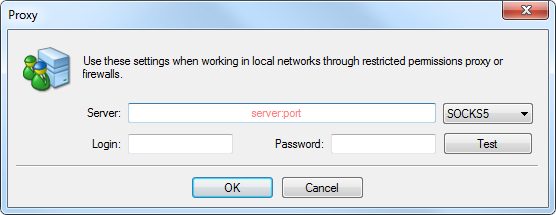
If a proxy is used, the terminal must be set up in a corresponding way. Setting of “Enable proxy server” checkbox will enable proxy server support and activate the “Proxy…” button. Pressing of this button will open the window where proxy server parameters should be specified (these data can be given by the systems administrator or by internet provider):

Graphical user interface, application, Word

Description automatically generated

Link to this answer

If my MetaTrader is closed, will my pending orders still work? What about trailing stop?

Pending orders will continue to work after the MetaTrader platform is closed on the customer’s end. However, trailing stops will not.

If you close your MetaTrader platform your Trailing Stops will close alongside it.

Link to this answer

Is it possible to reduce the demo account balance?

Unfortunately, no. Balance on a Demo trading account can only be increased.

However, within your Client Office portal you can have up to 15 different Demo trading accounts.

By creating additional Demo Trading accounts you will be able to choose how much balance you would like for it to have.

To create additional Demo trading accounts please follow steps below:

  1. Login to your Client Office
  2. Once logged in please click on the “Open demo account” button

Link to this answer

My Metatrader is slow and lagging. What can I do to make it faster?

There are various causes to the issue, for example, your charts may eat up a lot of system memory and resources. The MT4 platform is prone to have issues, to slow down occasionally, and experiences different problems such as:

  • Lagging
  • Freezes
  • Slowdowns
  • Chart lagging
  • Slow execution of orders

Unfortunately, the problems list isn’t limited to just these five, and you may experience additional problems such as updating problems, lagging indicators, and a complete system hang.
 

You can try to improve your MT4 performance by following these MetaTrader optimization tips.

However, the fastest solution to the problem is by installing a brand new MetaTrader that can be downloaded on the Trader’s Way broker’s website.

In case you wish to follow along with the MetaTrader optimization tips, you can:

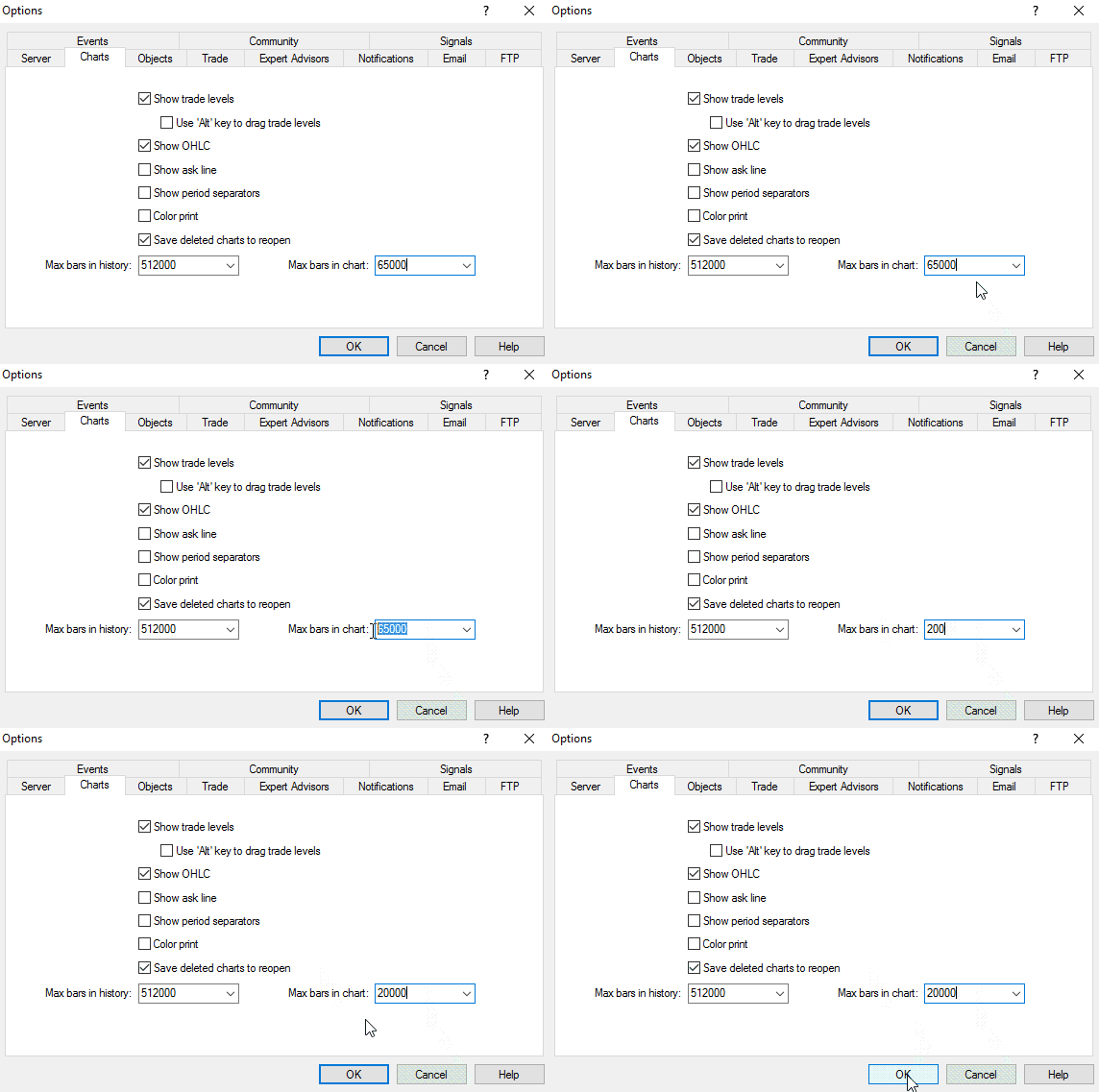
  1. Reduce Max Bars in a Chart
  1. Open your Metatrader 4 platform
  2. Click Tools > Options > Charts and then find “Max bars”, located in the chart field
  3. Decrease this value by at least 50%
  4. If the performance still lags, keep decreasing the value until it becomes smooth
  5. Additionally, you can opt to decrease “Max bars in history” too

Very often, step number 5 is not needed, as reducing “Max bars in chart” alone should offer a dramatic performance increase. Steps 1–4 on the other hand, are extremely recommended, and should solve a lot of the performance related issues.

Graphical user interface, text, application, email

Description automatically generated
  • Optimize the Memory (RAM)

Active traders usually have more than one MetaTrader 4 terminal open during a trading session. This can be due to many different reasons, including the management of multiple accounts, demo trading, practicing different trading strategies etc. The limiting factor to how many MetaTrader platforms you can run on a computer is based on the CPU speed and the memory available.

This can be an especially big problem when running MetaTrader on an older PC or Mac. However, even new computers might experience the same problems with MT4 lagging, high memory usage, and annoying slowdowns.

Below, you will find a list of simple changes you can apply to MT4 in order to reduce MetaTrader’s memory leakage:

Graphical user interface, text, application, email

Description automatically generated
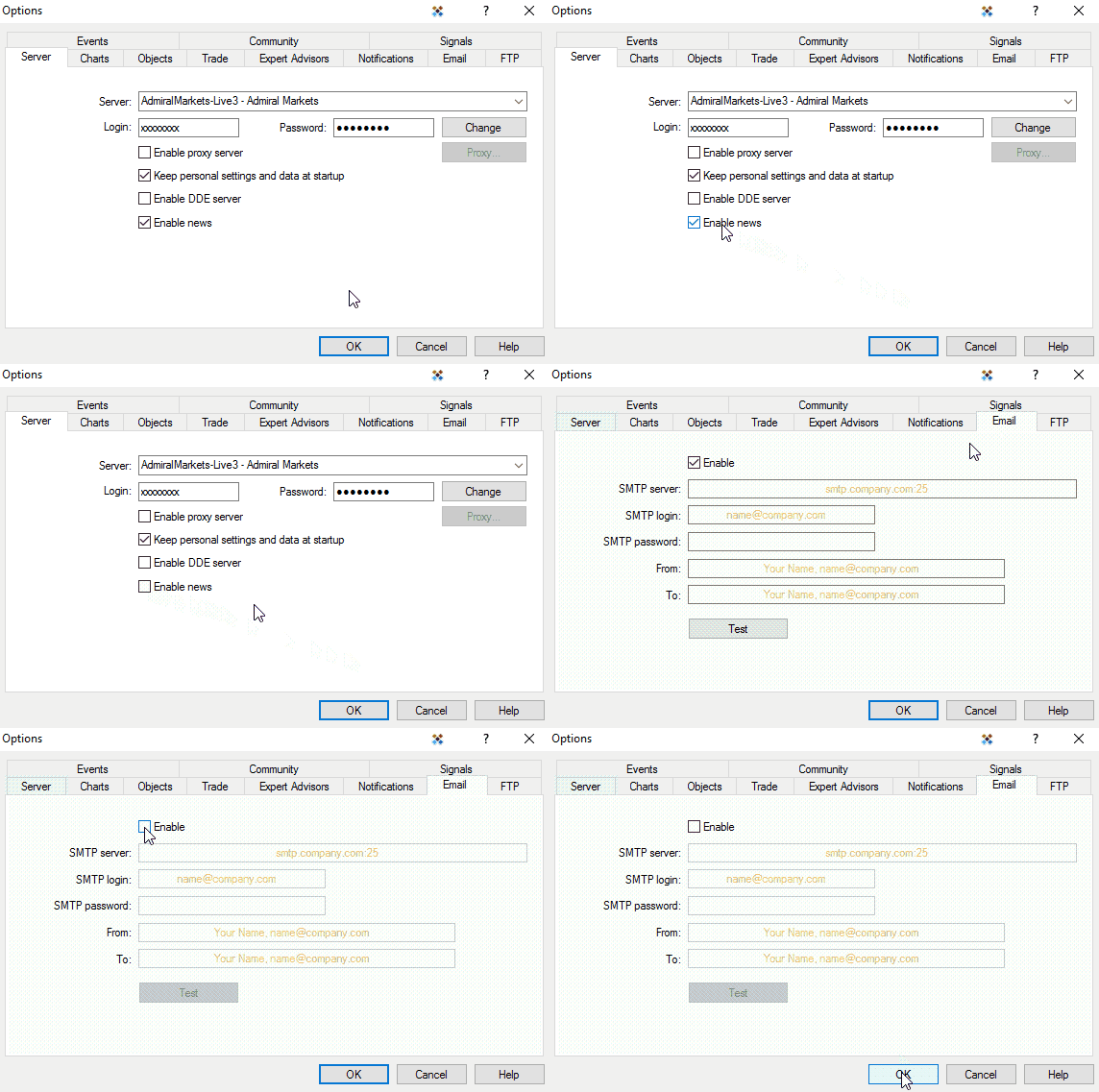
  1. Try disabling features you do not use in the Publisher, Email and Events Tabs
  2. Disable ‘News’ in the Server Tab
  3. Press CTRL + M to Market Watch, then right-click and choose ‘Hide All’, deleting all pairs that are not in use
  4. Close all the charts that you are not using (it will save your computer memory)
  5. If you are running any Expert Advisors, consider disabling any logging functions if they are not required
  6. Restart MetaTrader from time to time, to maintain low memory usage
  • Use Profile Settings

Profile settings allow you to control and group the number of charts and currency pairs that are open at one time. You can use these settings to save and load only those pre-selected currency pairs.

Example:

You only wish to see charts related to EUR, GBP, and USD, while in the evening or the night you prefer to only see AUD, NZD, and JPY-related crosses. Using Profile settings, you can save a lot of time.
First, you save a profile named “London” with charts such as EUR/USD, EUR/GBP, GBP/USD, and USDCHF. Then you can save a “Tokyo” profile that would only bring up pairs such as USD/JPY, AUD/JPY, GBP/JPY, and NZD/USD.

Graphical user interface, application

Description automatically generated
  • Check out for Custom Indicators

If your CPU is constantly overloaded and you notice that MT4 is not responding at all, the culprit may be one of the custom-made indicators. On the other hand, the default indicators that come with MT4 are usually well optimized, and don’t mess up with your computer memory footprint.

You need to check which custom indicator hangs your system and delete it. The problem is that many of the custom-coded indicators are badly coded and unoptimized. These indicators were developed by industry professionals, and though they offer more than 55 exclusive options, they don’t burden the CPU power or the RAM.

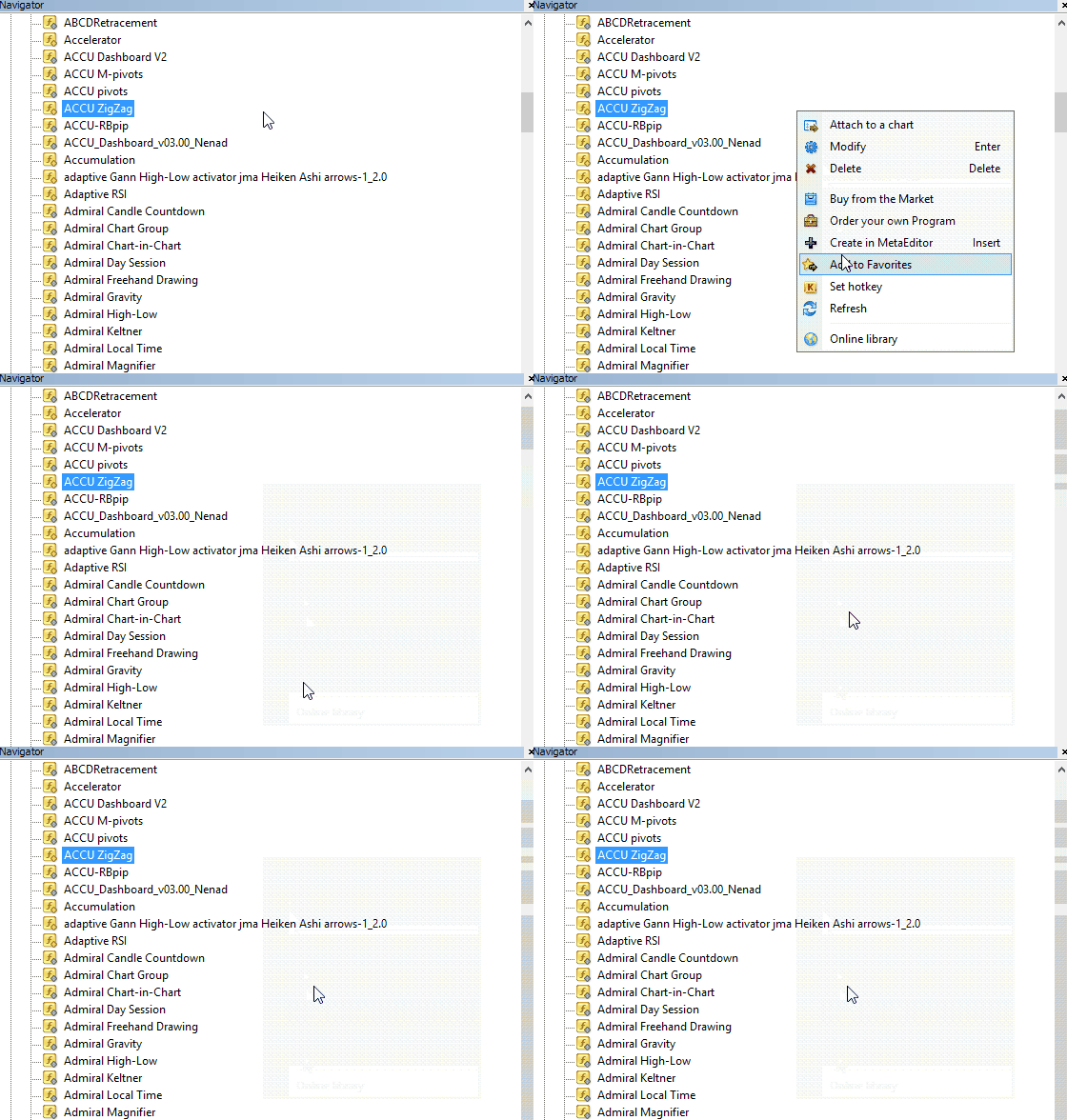
Tip: When you install a new indicator, you don’t need to restart your platform for your custom indicator to show up in MT4. Just refresh the navigator panel, and your new indicator should appear after a couple of seconds.

Graphical user interface, text, application

Description automatically generated

Link to this answer

My MT4 is saying “Old Version” what should I do?

MT4 old version error represents an error that shows that the trader has an old version of the MetaTrader platform installed on a PC or phone application. This version is not compatible with MT4 servers anymore. In this case, the trader needs to update the current version of MT4 or MT5 software. There are two solutions. The first one is to download and install the new version from the broker’s website and the second solution is to run an automatic update of the MT4 platform.

Solution 1)

  1. Open the Midas FX website.
  2. Navigate to the Platforms page
  3. Download the platform of your choice

Solution 2)

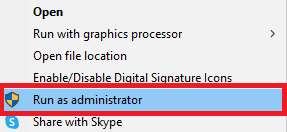
Go to the desktop icon of your MetaTrader platform. Right-click and choose “Run as Administrator.” Usually, the Metatrader software will be updated to the newest version. Check is there any MT4 Common error or off quotes in MT4 error.

Graphical user interface, text, application

Description automatically generated with medium confidence

However, sometimes, very rare, the only solution is to install the new version in the new folder and to remove the old version from the computer.

Link to this answer

What is a Trailing Stop, and how can I set it?

Stop Losses are intended for reducing losses when the market moves against your position, but they can help you lock in your profits as well.

While that may sound a bit counterintuitive at first, it’s actually very easy to understand and master.

Let’s say you’ve opened a long position and the market moves in the right direction, making your trade a profitable one at present. Your original Stop Loss, which was placed at a level below your open price, can now be moved to your open price (so you can break even) or above the open price (so you are guaranteed a profit).

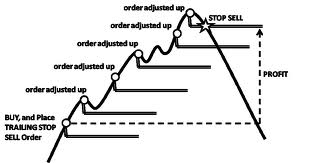
To make this process automatic, you can use a Trailing Stop. This can be a useful tool for your risk management, particularly when price changes are rapid or when you’re unable to constantly monitor the market.

As soon as the position turns profitable, your Trailing Stop will follow the price automatically, maintaining the previously established distance.

Diagram

Description automatically generated

Following the example above, please bear in mind, however, that your trade needs to be running a profit large enough for the Trailing Stop to move above your open price, before your profit can be guaranteed.

Trailing Stops (TS) are attached to your opened positions, but it’s important to remember that if you have a trailing stop on MT4, you need to have the platform open for it to be successfully executed.

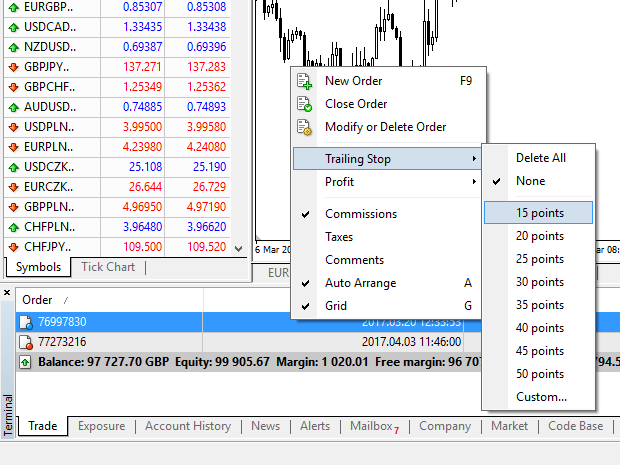
To set a Trailing Stop, right-click the open position in the ‘Terminal’ window and specify your desired pip value of distance between the TP level and the current price in the Trailing Stop menu.

Graphical user interface, application

Description automatically generated

Your Trailing Stop is now active. This means that if prices change to the profitable market side, TS will ensure the stop loss level follows the price automatically.

Your Trailing Stop can easily be disabled by setting ‘None’ in the Trailing Stop menu. If you want to quickly deactivate it in all opened positions, just select ‘Delete All’.

Link to this answer

What is the time zone of your server? Can I change it?

Midas FX trading servers are following with the GMT+3 time zone over the summer and with the GMT+2 time zone over the winter. Unfortunately, the server time cannot be changed and will always remain as is.

Link to this answer

What is your MetaTrader order execution time?

MetaTrader general execution time is of around 200 – 300 ms up to 500 ms

Link to this answer

Where can I download MetaTrader? (desktop and mobile)

Please find the download hyperlinks below, or alternatively on the MidasFX website under the Platforms section:

In addition, you can also use the MetaTrader directly from the our website without having to install it to your device:

Link to this answer

Where can I find details about the specific trading instruments in MetaTrader? (desktop and mobile)

Right click on the trading instrument in the Desktop MT4 and then select the “Specifications” option to display details about the selected trading pair.

To display the pair’s specification on a Mobile MetaTrader go to the “Quotes” tab first then tap on any of the trading pairs on the list and select “Symbol Properties” on the newly opened menu.

Link to this answer

Where can I find the Swap rates in MetaTrader?

To locate swap rates for each trading pair please right click on the trading instrument in the Desktop MT4 and then select the “Specifications”

Link to this answer

Why is my demo account from MetaTrader not listed in my Client Office?

Two possible causes for such occurrence:

  1. Demo account is not created through your Client Office portal
    or
  2. Demo account expired from your Client Office portal

Please be aware that when a Demo account is created through the MetaTrader platform it will not be linked with your broker’s account and trading office.

Such accounts exist only locally and within of your MetaTrader platform.

Unfortunately, there is no way to later add to the customer’s Client Office a Demo account created through the MetaTrader platform.

———— If however your Demo account was created in your Client office, and is still running on your MetaTrader, please contact Customer Support for further assistance and for them to check will it be possible to restore such Demo account to your Client Office.

Link to this answer